Sharing files between a Windows guest and Ubuntu host using VMware and Samba
VMware Workstation (and presumably the other enterprise-grade products in the VMware family) come with the handy “shared folders” feature which makes sharing files between a host and a virtual appliance nice and simple. The free products (VMware Player and Server) do not, unfortunately, have this ability and so we must find another way.
This quick guide shows how to use Samba to achieve the same aim. It is aimed at Ubuntu users but (the general concepts at least) should work on any modern Linux distribution. It is also written with a Windows XP guest in mind but a similar process should work in Windows Vista, Windows 2000 and other operating systems.
The goal is to set up a network share which both operating systems can transparently read and write to.
For reference, I am using Ubuntu 7.04 (Feisty).
Which VMware?
I’ll presume you have VMWare already installed with a Windows XP guest virtual appliance already set up. This guide is aimed at users of VMware Player and Server editions (I am using VMware Player).
VMware Player is a simple:
sudo apt-get install vmware-player
away. For the Server edition, you’ll probably want to consult the wiki.
Install Samba
If you don’t already have Samba installed, now would be a good time to do it:
sudo apt-get install samba
In order to keeps things clean and easy to manage, we’ll set up a new user account to own the share. This account name will be used when connecting to the share from within Windows. For the purposes of illustration, I will be creating a share called sandbox with the username and group also being sandbox.
Create the new group and user account with no login privileges:
sudo groupadd sandbox sudo useradd --gid sandbox --shell /bin/false sandbox
To avoid creating a redundant home directory, you can add:
--home /nonexistent
to the end of the previous command.
Now you need to add a matching Samba account. You’ll be prompted to set a password - make note of this as this is what you will use to connect to the share from within Windows.
sudo smbpasswd -a sandbox
Next you’ll need to create a directory to be used as the share (assuming you don’t already have one). Create a directory, setting the username to your usual login and group to sandbox. Then chmod the directory 775 (assuming you wish both yourself and the virtual appliance to have read/write access). Here is what I entered:
cd $HOME mkdir sandbox sudo chown russ:sandbox sandbox sudo chmod 775 sandbox
When you write to the share from within Ubuntu, new files will be created with the default permissions 644 with the username and group being your own user account. When your Windows client connects to the share, it will access it as if it were the local system user sandbox and so the group permissions will apply and you won’t be able to write to any files created from within Ubuntu.
To get around this problem, we can set the groupid bit for the sandbox directory which means all new files created will inherit the permissions of the parent and so the sandbox user from within Windows will be able to make read and write changes as desired.
sudo chmod g+s sandbox
If you don’t understand the above, don’t worry, just chmod the directory with the command above and all should be well.
Setting up the Samba share
Now all that’s left to do is to tell Samba about our share. Open up /etc/samba/smb.conf in your favourite text editor.
sudo gedit /etc/samba/smb.conf
Firstly, we need to set the security mechanism to user. Look for the line:
security = user
and make sure it is uncommented (remove the preceding semicolon if there is one).
Now, scroll down to the Share Definitions section and add the following:
[sandbox] path = /home/russ/sandbox valid users = sandbox read only = No create mask = 0777 directory mask = 0777
Be sure to set the correct path to your share. Save the file and restart the Samba daemon:
sudo /etc/init.d/samba restart
That should be it. You should now be able to connect to your share from within the Windows guest. At this point you need to know what IP address to connect to from within Windows. This depends on what networking mode you are using for your virtual appliance.
Bridged Networking
In this mode, your guest OS has its own IP address and so the address it needs to connect to is your usual host machine’s address. In this case your address is probably the top line from the output of this command:
ifconfig | grep "inet addr:"
NAT networking
In this mode, your guest OS shares your host’s address (in terms of other machines on the LAN) and communicates with the host via a private network. In this case, the IP address you need to connect to is most likely the bottom one from the output of this command:
ifconfig | grep "inet addr:"
Connecting to the share from within Windows
If you are unsure as to your host’s IP address, try and ping it first from within the Windows guest to confirm you have the right one.
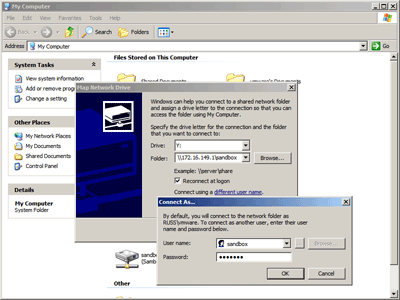
Having worked out what IP address to connect to, you should now be able to connect to your share from within Windows.
The easiest way to do this is:
- Open up My Computer
- Go to the Tools menu and then Map Network Drive
- Choose a drive letter to map the network share to
- In Folder, enter: \\HOSTIP\sandbox (replacing HOSTIP)
- Click “Connect using a different user name” and enter:
- username: sandbox
- password: yourpassword
- Click OK and then the Finish button to connect
Hopefully, congratulations are in order. If not, be sure to make sure that any firewalls you have running (host or guest) have the correct rules set to allow communication between the two systems.
A note on security
At this point, assuming you have a successful connection, it is worth noting that any other machine on your local network (and potentially the internet if you are not behind a NAT or firewall) can connect to your share (assuming they have the correct credentials).
If you are only using Samba for sharing with VMware (as I am), you may wish to restrict access to VMware only. This is quite easy to do since VMware creates virtual network interfaces for communication between hosts and guests. This means we can set Samba up to ignore any communications that do not originate from these interfaces.
To do this, open up your Samba configuration file again:
sudo gedit /etc/samba/smb.conf
Make sure you have a:
bind interfaces only = true
line and that it is uncommented (remove any preceding semicolons). Just above this should be an interfaces line (most likely commented out). Add the following just below this:
interfaces = vmnet0 vmnet1 vmnet8
These are the virtual interfaces VMware uses for each type of virtual networking: bridged, host only and NAT respectively.
After making the changes, you will need to restart Samba again:
sudo /etc/init.d/samba restart
and possibly shutdown your VMware session and restart the VMware service:
VMware Player:
sudo /etc/init.d/vmware-player restart
VMware Server:
sudo /etc/init.d/vmware restart
Finished
You should now have a Samba share configured which is only accessible from your VMware guest appliances. Good luck!
on April 29th, 2007 at 7:15 am
thanks it worked
on April 30th, 2007 at 12:22 am
Thanks for the guide. Got everything up and running smoothly!
on May 5th, 2007 at 8:13 am
Connecting to SAMBA from the windows guest just doesnt seem to work in bridged - any ideas. Worked first time in NAT.
on May 9th, 2007 at 7:08 am
Thank you! Just worked!
on May 9th, 2007 at 9:11 pm
Thanks a lot for this tutorial. I’ve been trying to get samba+vmware to work for days. Now it’s up and running.
on May 10th, 2007 at 11:45 pm
i followed all the steps and at last when trying to connect with map network drive from windows, it says that the network location cannot be reached…
and i am pretty sure that i have done everything correctly
on May 10th, 2007 at 11:50 pm
i changed vmware to use NAT connection and it worked like a charm
thanks… still, not understanding why the bridged connection didn’t work.
on May 11th, 2007 at 8:53 pm
Thanks for posting this, it worked perfectly on my ubuntu feisty x64 install.
on May 12th, 2007 at 9:18 pm
it workes for me
exept for the line
interfaces = vmnet0 vmnet1 vmnet8
for some reason it get blocked
maybe it would be nice to publish your .vmx fille
on May 23rd, 2007 at 4:41 am
Thanks a lot, it works very well. had the problem where the network bridge did not connect but switching to NAT worked great.
on June 5th, 2007 at 10:13 am
Thanks. This works. I’ve got a debian linux as VM (running through VMplayer) on my windows XP desktop & I was able to successfully share a folder between the VM and my desktop.
on June 5th, 2007 at 11:00 pm
Interesting Arun - I didn’t consider the possibility of doing this in reverse!
Glad you were successful.
on June 8th, 2007 at 12:43 am
If any of you see your files/folders in the winxp share but cannot access the files, don’t forget to check the file/folder permissions of the items you transferred into the “sandbox” folder.
on June 9th, 2007 at 4:33 am
thank you for the well written and understandable tutorial, it now works
on June 17th, 2007 at 5:43 pm
Hi !
does not work with bridged network.
Any ideas ?
thanks
karl
on June 18th, 2007 at 10:02 pm
I have Ubuntu as the host, and Win XP as the guest. I can see an Ubuntu shared folder from Win XP. I can see a Win XP shared folder from another computer. But when I am on my host computer and I try to explored shared folders on the Windows XP virtual machine, Ubuntu shows me the Ubuntu shares instead! Bridged connection.
on June 18th, 2007 at 10:04 pm
Oh, but if I use the IP address of the virtual machine as the server name, it works.
on June 21st, 2007 at 4:05 pm
Same as Mike, everything worked but the interfaces option.
If I execute ifconfig while VMware player is running, I do not have any vmnet0 device. I have tried NAT and bridged but there were no changes.
If I do not use ‘interfaces’, everything works, but I would like to block connections from outside.
Any idea? Thanx!
on June 22nd, 2007 at 1:42 pm
Problem solved! I was using a wrong IP address. Works like a charm!!
on July 23rd, 2007 at 10:57 pm
Thanks,
It worked perfectly for me too!
on July 27th, 2007 at 3:26 pm
Thanks for the tutorial.
In case I use NAT everything works perfectly (including bind interfaces only = true), but no success using BRIDGED so far.
on July 29th, 2007 at 4:23 pm
Thank you it works fine. I still have a question… Your “trick” suppose that you are connected to the internet. Is it possible to use this trick without being connected to the internet?
Thanks again
on July 30th, 2007 at 10:56 am
A way (workaround) for using bridged connection and having the samba share to work is to add a second ethernet adapter of host-only type to the virtual machine and use this one to map the network driver.
Running “ipconfig /all” in the guest system will show two IPs. The first one related to your bridged connection and the second one for your host-only connection, in my system the latter is 192.168.150.128. Hence when I map my network drive I use:
\\192.168.150.1\sandbox
on August 2nd, 2007 at 4:35 am
Thank you for your How To. It solved a lot of problems.
a couple of comments to make thing more clear. This command didn’t work:
sudo chown russ:sandbox sandbox
because “russ” is the author’s name (not readers one). So according to the explanation in the HowTo it should be:
sudo chown sandbox:sandbox sandbox
that is also pretty puzzling. Generally it should look like:
sudo chown username:group foldername
It would be better to apply different names to group, user and folder, just for the purpose of the tutorial.
Another issue was with the connection. Maybe I am wrong, but we can’t use the existing NAT, which is used by VMWare internally. The connection happened after I had added the second BRIDGET network card to virtual Windows.
But this How To was the only which worked for me, thank you very much!
on August 13th, 2007 at 8:00 am
Everything worked for me (on Ubuntu Feisty) but for the binding to the interfaces. I noticed that when I change the following line:
interfaces = vmnet0 vmnet1 vmnet8
to:
interfaces = vmnet0, vmnet1, vmnet8
it ALL worked!
Thank you very much for the tutorial!
on September 15th, 2007 at 10:30 am
Thanks a lot for this tutorials. Initially only NAT worked for me because I messed my samba config but after following this guide and vmware docs bridge mode works as well.
I’m using Ubuntu 64bit host and vista ultimate 32bit as guest. I can see vista vm from ubuntu and vice versa.
Thanks again.
on November 7th, 2007 at 9:31 pm
Thank you thank you ! I’m new to linux and the piece I was missing was the permissions. I didn’t have them quite right but you showed what permissions were required which is just what I needed
on November 18th, 2007 at 12:59 pm
Fantastic, straightforward “how to”, worked perfectly thank you
on November 19th, 2007 at 1:35 am
Thank you very much for this great comprehensive article. You saved me a lot of time and effort.
thanks,
R
keep spreading the knowledge
on November 21st, 2007 at 10:03 pm
Thaks. good Job. you saved my day
on January 6th, 2008 at 4:18 pm
Man…
You really kick ass!!!
This post was wonderful…
I have made through the steps smoothly… An in addiction I’ve learned how to share folders in my windows network!
Thank you very much!
(Votes up for StumbleUpon)
on January 20th, 2008 at 4:47 pm
Great tutorial !!! Everything works like a charm
on January 25th, 2008 at 9:53 pm
Hi,
I am having trouble getting Windows (Vista Home Premium) to see my Linux machine. I have followed the instructions above but I cannot determine the correct IP address to connect from within Windows (I tried 192.168.1.3).
I also did an ipconfig /all command from Vista, but it did not return a device with an IP of 192.168.1.3.
Here is the IP info from Linux. Can anyone help?
Thanks!
-Josh
josh@Gateway:~$ sudo gedit /etc/samba/smb.conf
Fontconfig error: “~/.fonts.conf”, line 1: XML declaration not well-formed
josh@Gateway:~$ sudo /etc/init.d/samba restart
* Stopping Samba daemons… [ OK ]
* Starting Samba daemons [ OK ]
josh@Gateway:~$ ipconfig -a
bash: ipconfig: command not found
josh@Gateway:~$ /sbin/ifconfig
eth0 Link encap:Ethernet HWaddr 00:0C:F1:99:0F:16
inet addr:192.168.1.3 Bcast:192.168.1.255 Mask:255.255.255.0
UP BROADCAST RUNNING MULTICAST MTU:1500 Metric:1
RX packets:949866 errors:0 dropped:0 overruns:0 frame:0
TX packets:706138 errors:0 dropped:0 overruns:0 carrier:0
collisions:0 txqueuelen:1000
RX bytes:926253488 (883.3 MB) TX bytes:86261274 (82.2 MB)
lo Link encap:Local Loopback
inet addr:127.0.0.1 Mask:255.0.0.0
UP LOOPBACK RUNNING MTU:16436 Metric:1
RX packets:4696 errors:0 dropped:0 overruns:0 frame:0
TX packets:4696 errors:0 dropped:0 overruns:0 carrier:0
collisions:0 txqueuelen:0
RX bytes:711559 (694.8 KB) TX bytes:711559 (694.8 KB)
josh@Gateway:~$
on February 12th, 2008 at 9:17 pm
Thank you!!! It worked perfectly
on February 24th, 2008 at 3:41 am
It really work !!! My machine is Ubuntu Host and windows xp Sp2 Guest Os.
Thanks a lot for this useful guide.
salu2
on March 1st, 2008 at 4:16 am
Just too good!
on March 9th, 2008 at 2:17 am
Works, only for NAT, I have not been able to make it work on Bridged, however, this post was simply amazing and wonderful!!! Thanks for sharing your knowledge with us!!!
on March 13th, 2008 at 11:12 pm
Hi , just wanted to say great tutorial, relatively new to Linux and this worked like a dream. Like some previous posts am having issues when trying to lock down share to vmnet connections only IE The final step in your instructions but can probably live with that till I figure out why.
Cheers
Jeff
on March 16th, 2008 at 12:03 pm
A really good tutorial.
I was very disappointed that the Workstation solution
was not available and couldnot find the correct route
myself.
Now it works!
Thank you very much!
on March 21st, 2008 at 11:12 pm
I’ve just tried under ubuntu 7.10 and XP on laptop, excellent how-to, works fine. Thank You.
Greetings from Polland.
on April 28th, 2008 at 10:53 pm
Hi Russ,
Thank you very much for this clearly written tutorial - works perfectly (Ubuntu on Vista).
Great work,
Rgards,
Mike.
on May 15th, 2008 at 2:50 pm
Great explanations!!!
many thanks,
gennaro
on May 27th, 2008 at 2:05 pm
I have been trying to do this for ages. Finally some instructions that lead step by step. Thanks.
kathy
on June 8th, 2008 at 4:07 pm
Great post.
On my system (RHEL) using NAT in order to find the correct IP address I had to go to my XP Guest and open a CLI (cmd.exe) then do
ipconfig
The gateway address is the one I needed.
HTH
on June 18th, 2008 at 2:22 pm
it worked ! wow! thanx a lot!
id been struggling with this file sharing issue for like a month … very frustrating
on June 26th, 2008 at 9:28 am
Hi Russ!
Thanks a lot for the tutorial. It worked for me - NAT, not bridged! (Win XP on Ubuntu Hardy 64 bit)
Best wishes,
Dan
on July 1st, 2008 at 4:51 pm
Thanks!!! Things are working!!!
But, I forget my sandbox’s password. Actually, I think I typed in correctly but got rejected, I tried to switch user to sandbox in my host, the password is really wrong. Please, how to reset it?
on July 4th, 2008 at 6:58 pm
Russ, Thanks a million for posting this step by step guide for novices like me. I had installed VMWare Workstation and simply could not get their VMWare Tools to install to allow me to transfer files back&forth between Windows Vista Host and Ubuntu Linux running as a virtual machine.
I followed your instructions to the T and I now have a shared (mapped) drive on Windows where I can easily deposti files that Linux can see and vice-versa. Simply amazing..
Thanks again. -Ashok
on July 8th, 2008 at 10:41 am
great work, thanks a lot!
Like most of people here, struggling with this for already a long time and now found an easy solution.
thanx mate!
on July 11th, 2008 at 9:24 pm
Excellent guide… got me up and running very quickly. Glad to find the link to this page in the Ubuntu Forum.
on July 29th, 2008 at 4:20 pm
Russ, Thank you very much for your well thought out and written guide…
I am been puzzling over this for a while, and was suprised to find a clearly laid out “how to”.
It took me more time to “cut and paste” then it did to implement a sandbox. Furthermore your example made it a little more cleared on how to effectively use samba.
Got any more tips and technques?
on July 31st, 2008 at 12:08 am
Thanks for the guide! I am new to ubuntu and followed the how-to to install an XP host on my Ubuntu. I had troubles connecting to my Ubuntu shares until I found your guide!
on August 8th, 2008 at 10:27 pm
Thank you for this tutorial, everything ran perfectly. I used it to configure sharing between a Windows host and a Linux guest, there was only one step that didn’t quite work at first. Instead of using the “Map Network drive” tool in Windows, I had to open the type
net use (drive letter) \\(ip)\folder
on August 24th, 2008 at 8:49 pm
Fantastic tutorial, apart from me being an idiot and running the steps from a root terminal(sigh).. brilliant!
on September 18th, 2008 at 5:52 pm
Thanks for the tutorial. I just upgraded to Ubuntu 8.04 and it worked like a dream.
on September 18th, 2008 at 7:10 pm
if you have winbinds? (i don’t remember exactly), well wine depends on that, so wine installed, things just don’t work on ubuntu 8.04
after removing them, everything is fine.
thanks for the tut!
on September 18th, 2008 at 7:11 pm
could you also write here how to set up a firewall to work correctly?
on September 24th, 2008 at 3:58 am
Wow. What a great service you’ve provided for the Ubuntu (et al.) community. Thanks so much - it worked like a charm!
on September 26th, 2008 at 3:17 am
A couple of things you might want to consider doing differently:
You don’t need a separate user, so
username = my_username
create mask = 644
directory mask = 755
force user = my_username
force group = my_group
Then in Windows map the share; select ‘connect using a different…’ and enter your username–Windows likes to capitalize your username which may lead to problems.
That way you don’t have to worry about being able to write another user’s files, and you prevent windows from misbehaving in re file ownership (although that may not be necessary).
Cheers
on October 4th, 2008 at 7:15 am
Hey big thank you for this post man . . been up 3 nights straight trying to get this work on my Ubuntu Hardy 8.04.1 and finally i am successful tonight (1am in the morn)
keep up the good work looking forward to learn lots more from your posts and blogs
thnx again !
on October 4th, 2008 at 7:19 am
For the record i’m using the free version of
Vmware Server 1.0.6 build-91891 and
Ubuntu Hardy 8.04.1 of course
on October 7th, 2008 at 8:08 am
Nice Tutorial.
Thanks a lot…
All work fine.
on October 10th, 2008 at 9:56 pm
Great guide. Thanks a ton for putting this together.
on October 19th, 2008 at 6:45 am
Hey thanks I did this in reverse with Ubuntu Server as the guest and Vista as the host, worked like a charm
on October 23rd, 2008 at 7:41 pm
i am using vmware…and in that bridged….my interface is eth0 in main os…my net is connecting in guest…how can i make net to work in guest
on October 24th, 2008 at 2:19 am
thanks alot it worked.
on October 28th, 2008 at 2:50 pm
very good
it worked at the first attempt
on November 3rd, 2008 at 7:37 am
I’m sorry but I am very new to Ubuntu. I have followed all instructions a few times and I can’t connect in Windows. I’m not sure if I have the correct Host IP address. I have tried all that I can find. I am using NAT and I would REALLY appreciate any help I can get.
Thanks!
on November 12th, 2008 at 11:25 am
Many thanks for your article! This help me configure Debian (etch) the same way…
on December 9th, 2008 at 8:55 pm
hi, thanks for this straight forward article, but I can’t figured it out!
in opensuse 11.0
sudo /etc/init.d/samba restart
is
sudo /etc/init.d/smb restart
valid users = username
seems not working
u can use
guest ok = yes
guest account = username
but it’s not safe and password protected
what can I do???
on December 22nd, 2008 at 7:57 am
Thanks.
Your tutorial configured my samba like a breeze.
on December 29th, 2008 at 12:57 am
Thanks so much! I’m finally sharing files.
on February 11th, 2009 at 11:32 pm
Thanks, worked perfectly
on February 12th, 2009 at 8:59 am
[...] a shared network to share files between the host and the VM. Here is a detailed instruction to configure file sharing via samba. 3) Buying license software If you rely heavily on your VM for work, then you want want to consider [...]
on March 11th, 2009 at 10:12 am
courty@ubuntu:~$ sudo gedit /etc/samba/smb.conf
[sudo] password for courty:
** (gedit:5986): WARNING **: Could not write gedit state file: Failed to create file ‘/root/.gnome2/gedit-2.QKNRQU’: No such file or directory
I/O error : No such file or directory
courty@ubuntu:~$
courty@ubuntu:~$ sudo gedit /etc/samba/smb.conf
I tried to find the file mention in samba but with no luck. I do indeed have gnome and I followed the tutorial perfectly. Everything worked wonderfully up to this point.
on March 12th, 2009 at 12:41 am
First, thanks. Thanks a lot. Thank You. Your instructions are well written, clear, thorough and concise. I am not experienced or naturally gifted on a computer. But by shear effort I got to the point of having winxp working within Ubuntu 8.1 on an ibm t23. I do this so I can stay with Ubuntu, but I want to use a windows-only music player. I like Ubuntu very much and the people like you who help folks like me, but I like the music player also. I discovered I could not get file sharing on the virtual winxp. I bumbled and stumbled. You explanation worked for me. I don’t have much comphrehension of what I’ve done but I can now share with a folder of the Ubuntu desktop. On Ubuntu I access my main music file accessed through a network that accesses an external drive on a windows xp desktop.
Question: can my virtual win xp inside Ubuntu access the external drive?? If so could I humbly ask how? It is a large file and I do not want to load my laptop drive down.
on March 31st, 2009 at 1:22 am
Hi, your tutorial used to work for me, but now, with vmplayer 2.5.0, ubuntu 8.04 (server), the windows xp guest keeps telling me this:
“The mapped network drive could not be created because the following error has ocured:
The specified server cannot perform the requested operation.”
What can I do (I’ve also tried to change from NAT to Bridge, but it didn’t work too)?
on April 7th, 2009 at 3:09 pm
You are the man!
I have heard it said that, “Nothing in Linux is easy.” and even though I got a good book and had enough time on my hands, I fumbled around for a day with vsftp and then decide to try Samba. Well, as usual, Linux wouldnt play nice (always that one little thing…). A search on the web and your little tutorial really helped out. With just a few changes it worked just stellar on Ubuntu 8.1 and a Winders XP pro box. I have 2 network cards in a dedicated Linux file server, each card goes to an XP box and they do their backups on the Linux over 10/100/10000 cards. I get 200mbps transfer speeds with my mongo sized files and all the other features of Linux. So thanks to your tutorial you saved me lots of time and renewed my faith in linux. I am going to print this out and make a few additional notes and keep it as a reference. Thanks again to you and all the others who suggested the minor changes.